You will need to log on with the "Renovo" admin user to setup the various shared folders first , in order for them to appear in the drop down list. Only the User with ID 1 will be able to access the tables to edit. (Usually the user named “Renovo”)
NOTE: The user that runs the Distribution Service must have the rights to it. (Consult with your internal IT department) This is not a user that is created in the Report Writer application, but rather a Domain Account with Admin Rights assigned to the Service.
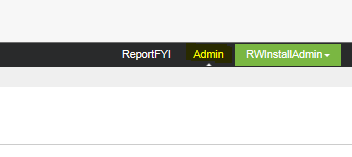
Click on the Admin section
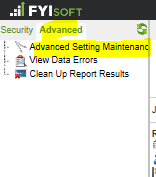
Click on Advanced and then Advanced Settings Maintenance
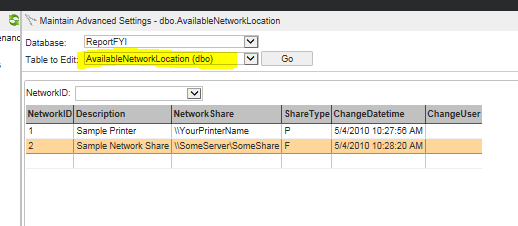
Select the “AvailableNetworkLocation(dbo)” table from the drop down selections
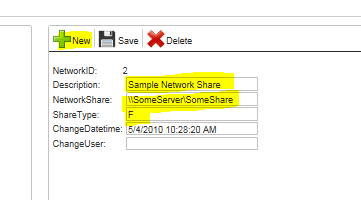
Select the “New” button to add a shared folder as seen below. (Share type F)
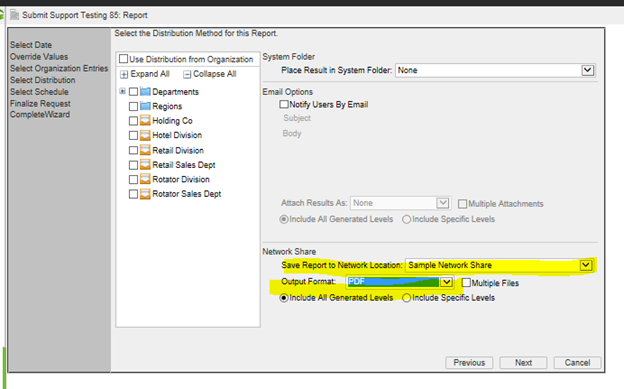
While submitting a report, go to the “Select the Distribution Method for this report”.
Select which Network Share Folder that you want the reports to populate at generation.
You MUST also choose the Output Format. (PDF or Excel)
Note: You may need to restart the app pool and the distribution service if the functionality is not working.
Was this article helpful?
That’s Great!
Thank you for your feedback
Sorry! We couldn't be helpful
Thank you for your feedback
Feedback sent
We appreciate your effort and will try to fix the article